Amazon transactions
How to reconcile your Amazon purchases
Introduction
For some reason, Amazon can often group together transactions making it difficult to reconcile purchases when they appear on your bank statement or in your bank feed on QuickBooks/Xero, etc. This guide provides screenshots to walk you through how to untangle the mess and identify which transactions relate to which purchases.
Download
Click the button below to download these instructions, if you would like to save them for future reference. (Size: 4.5MB, Format: PDF)
Further support
If you need any help with our resources, feel free to contact us. We are happy to explain them and offer training. We can even redesign the tools a bit, perhaps expand them or develop new features, because these resources are fairly basic tools and they're not designed for everyone.
You may need to amend the tools yourself a little bit to suit your individual needs as an organisation, and we would encourage you to adapt them and make the resources work for you.
We hope you enjoy them and find them useful. Providing free advice and resources helps us achieve our own charitable goal, which is to help organisations run themselves more efficiently and effectively.
Helpful reading
If you found this useful, why not try:
Step one
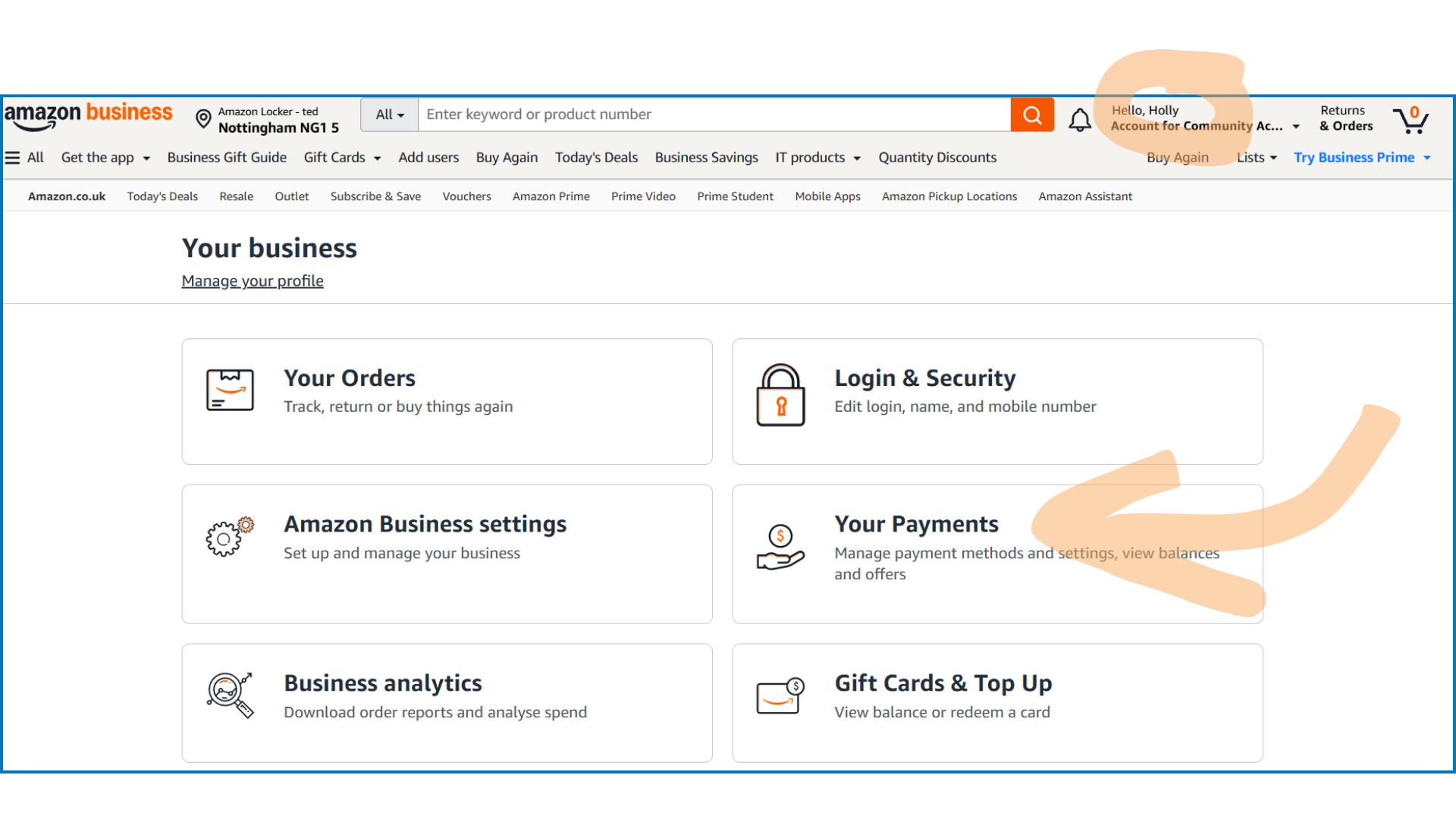
Open your account settings in the top-right.
Click on ‘Your Payments’.
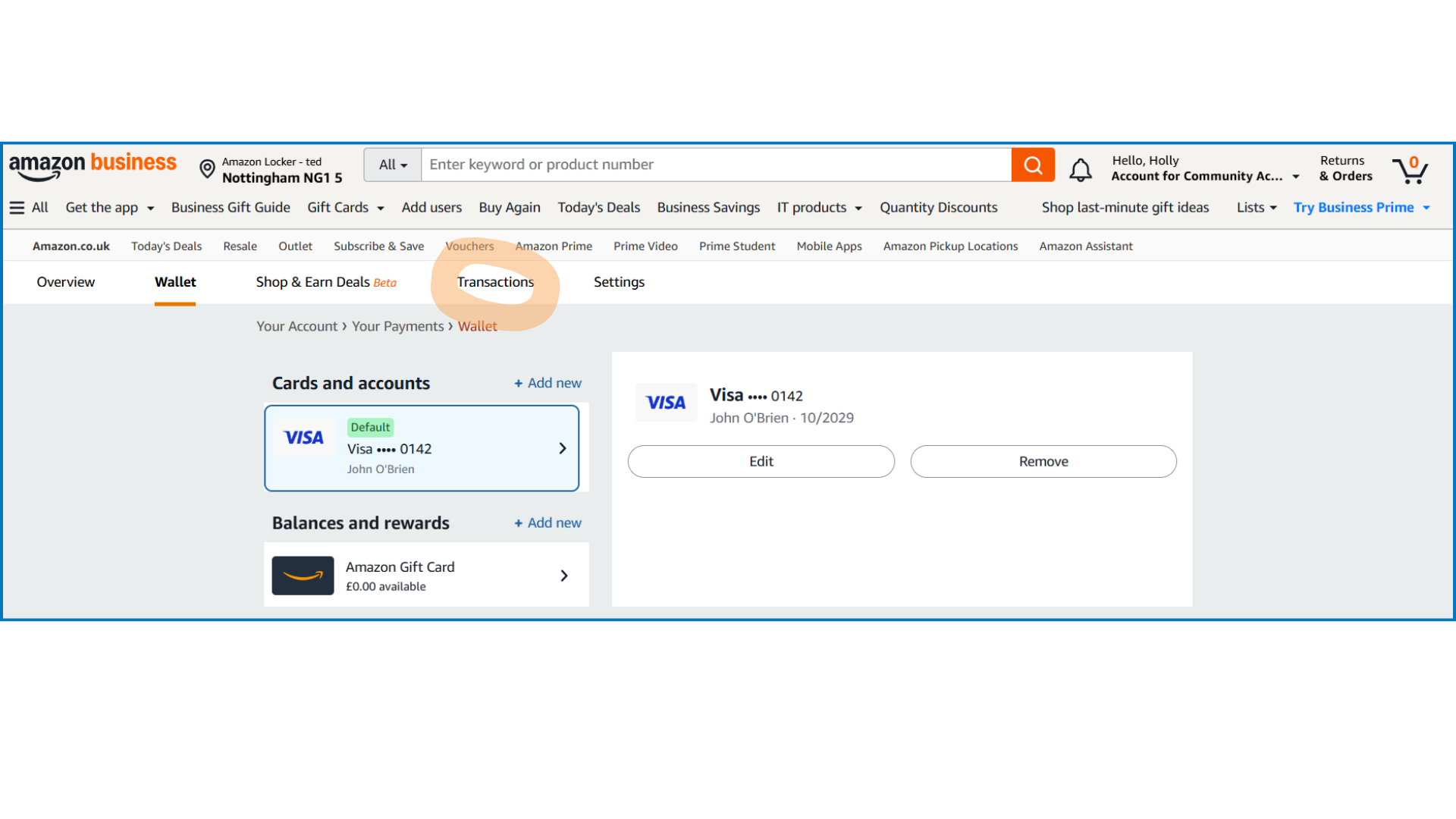
Step two
Go to the ‘Transactions’ tab.
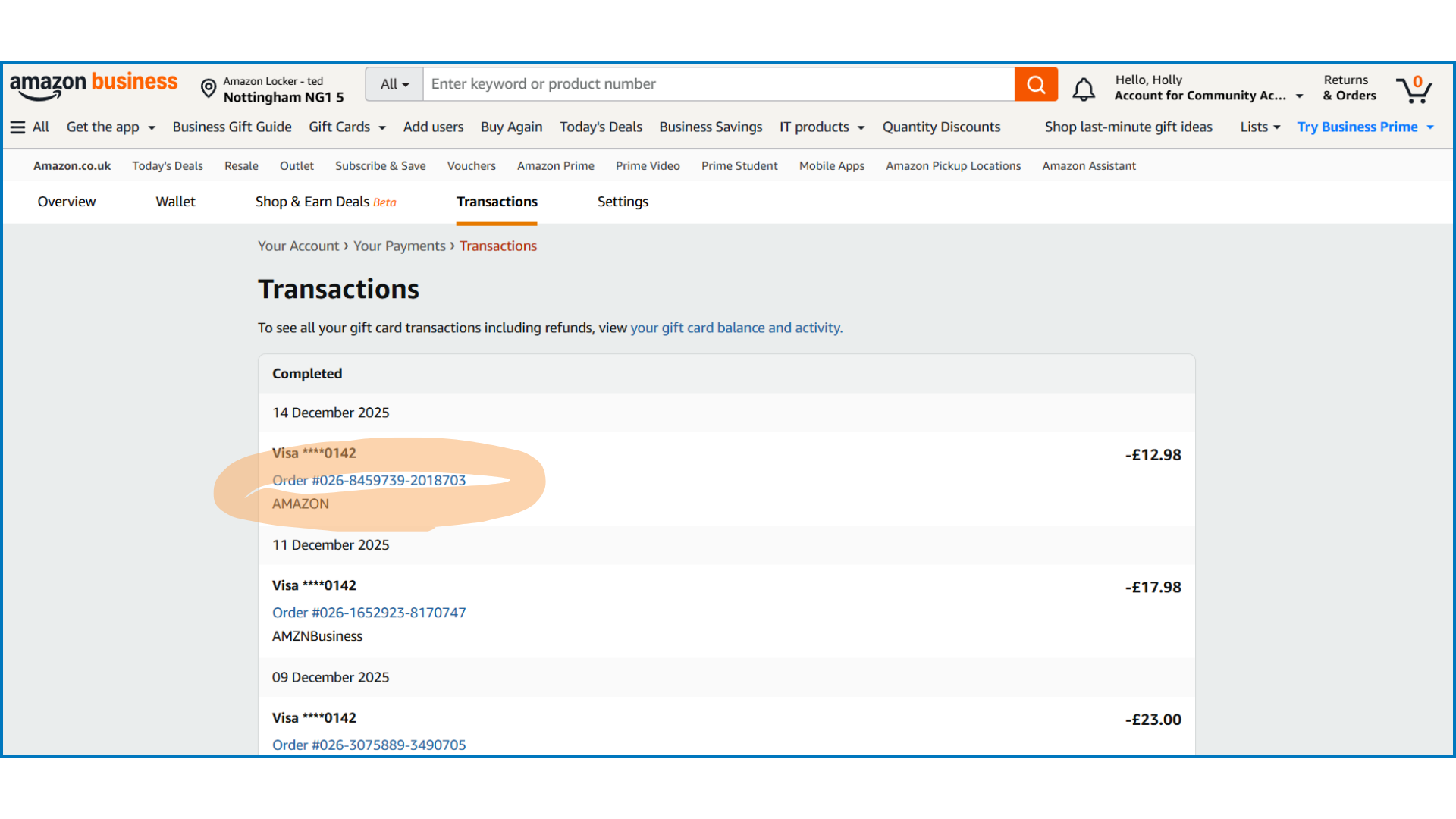
Step three
Click on the blue order number.
Step four
Open the ‘Invoice’ drop down menu and click on ‘Invoice’.
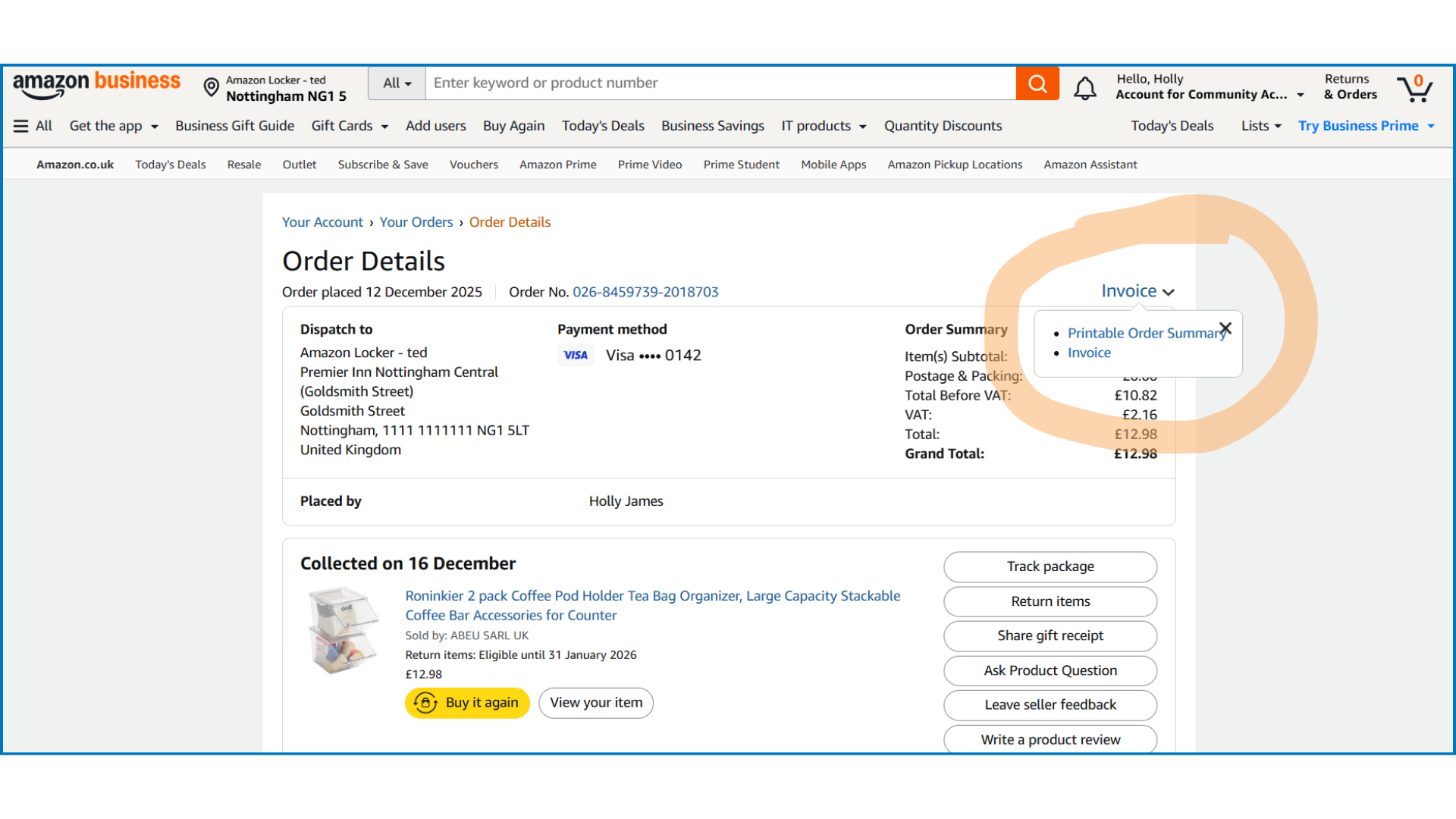
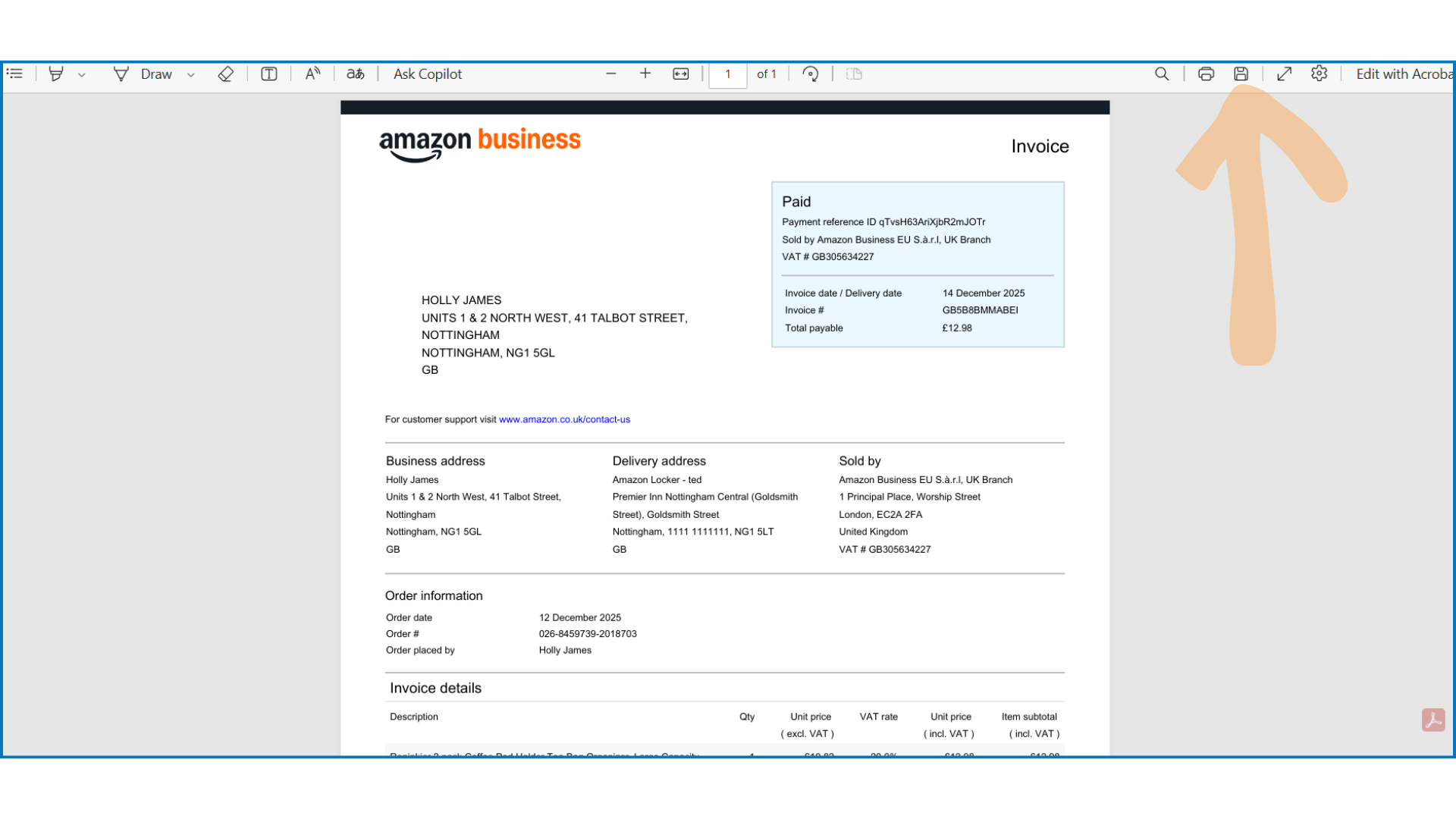
Step five
Download the invoice by clicking ‘Save’.